Brand-deal inbox sorter: a free n8n workflow
Stop losing sponsorship offers between newsletters and notifications. Every 15 minutes, this workflow checks your new Gmail messages, picks out brand deal emails, labels and logs them, and writes a reply draft that you review and send yourself.
What it does
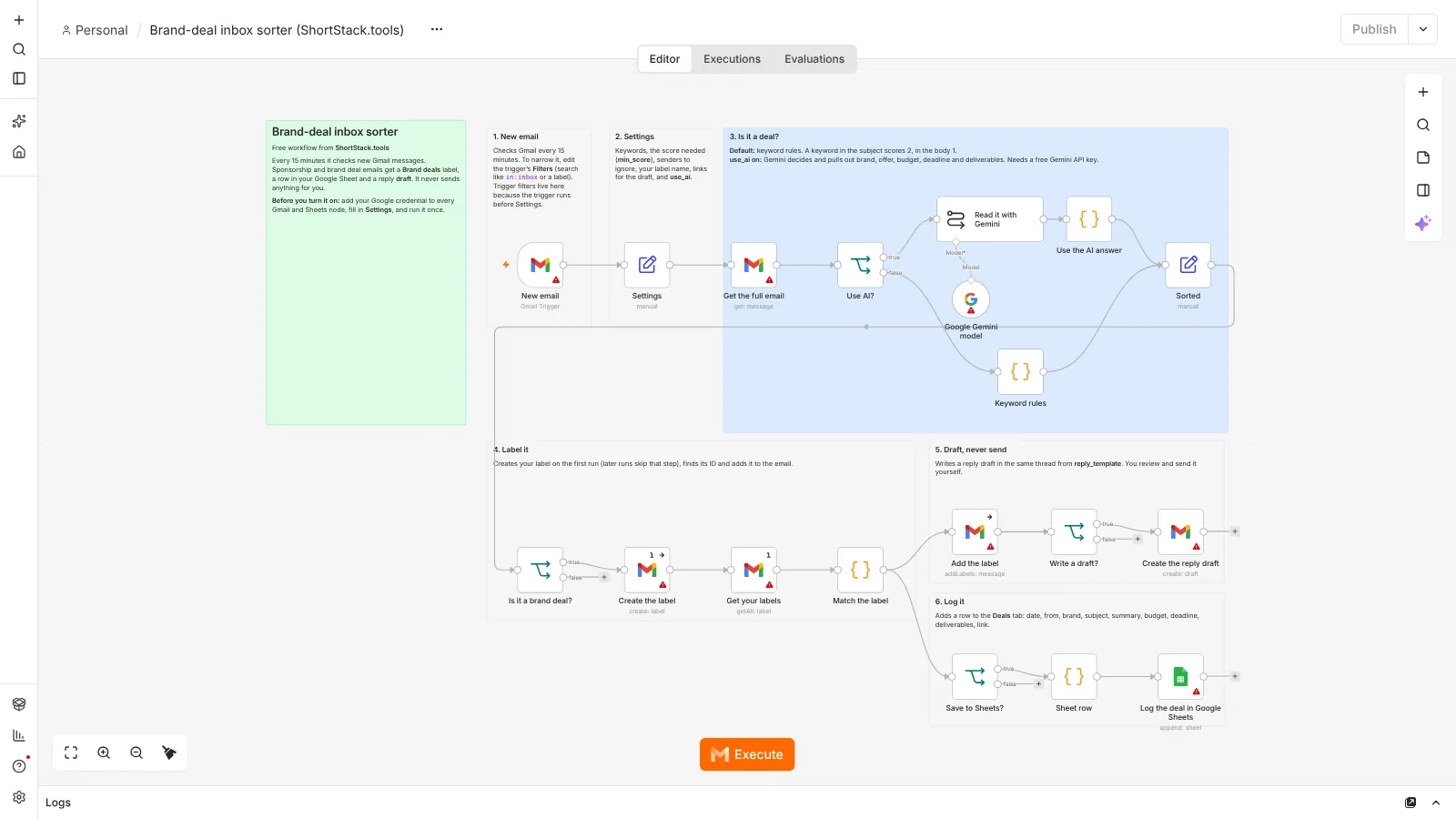
The Gmail Trigger checks for new messages every 15 minutes, and the workflow reads each full email. By default it uses keyword rules: words like sponsorship, paid partnership, brand deal, campaign, ambassador and user-generated content (UGC) score points, and a match in the subject counts double. Emails at or above your min_score count as deals, and the workflow pulls out a stated budget and deadline when it can find them. Switch on use_ai and Google Gemini, a large language model (LLM), decides instead and extracts the brand, offer, budget, deadline and deliverables. For each deal, the workflow adds your Brand deals label, appends a row to Google Sheets and creates a Gmail draft reply in the same thread from your template, with your rates and media kit links. It never sends an email.
- Every 15 minutesThe Gmail Trigger checks for new mail
- Read the full emailSubject, sender and body
- Is it a deal?Keyword score, or Gemini if use_ai is on
- Pull out detailsBrand, budget, deadline, deliverables
- Label itAdds your Brand deals label
- Draft a replyA Gmail draft in the same thread, never sent
- Log itA row in Google Sheets with a link to the email
Want tools that find sponsors or manage deals for you? See tools for brand deals.
What you need
- n8n: Free to run on your own computer as the Community edition. n8n hosting docs.
- Gmail: Your inbox, connected once in n8n. On self-hosted n8n this needs your own Google OAuth client (see below).
- Google Sheets: A tab named Deals with the headers date, from, brand, subject, summary, budget, deadline, deliverables and link.
- Gemini: Optional. A free API key from Google AI Studio if you want AI sorting.
Set it up in 8 steps
- Run n8n. Install it with Docker using the official n8n guide.
- Import the JSON file. In n8n, open a new workflow, click the three-dot menu and choose Import from File (n8n guide).
- Create a Google OAuth client. Self-hosted n8n needs your own client in Google Cloud with the Gmail API and Google Sheets API enabled (n8n guide). On n8n Cloud you can sign in with Google directly instead.
- Add your credentials. Pick your Google credential in every Gmail and Google Sheets node, including the trigger. Add a Google Gemini credential only if you set use_ai to true (how).
- Fill in Settings. Set my_name, rates_link, media_kit_link, sheet_id and label_name, and edit reply_template. The placeholders first_name, brand, rates_link, media_kit_link and my_name (each written inside curly brackets) are filled in for you. Adjust keywords, min_score (default 2) and ignore_senders if you like.
- Narrow the trigger if you want. The trigger reads in:inbox -from:me by default. Change its Search filter with any Gmail search operator, or pick a label. This filter sits on the trigger because the trigger runs before the Settings node.
- Test it. Send yourself a sample sponsorship email from another address, click Execute workflow and check the label, the sheet row and your Drafts folder.
- Activate it. Publish the workflow so it keeps checking on its own (n8n guide).
Run n8n for free
n8n's Community edition is free to run on your own computer with Docker. Follow the official n8n Docker guide. Your computer needs to be on when the workflow is due to run, so some people move n8n to a small server later.
Prefer not to self-host? n8n offers a cloud version with its own pricing (n8n pricing). The workflow file works with either.
Google sign-in on self-hosted n8n: the one-click "Sign in with Google" option is only for n8n Cloud. On self-hosted n8n you create your own Open Authorization (OAuth) client in Google Cloud: make a project, enable the Gmail API (and the Google Sheets API if you log to a sheet), set up the consent screen, create a web application client and paste n8n's redirect address into it. n8n's guide walks through each screen: Google OAuth2 for n8n.
Limits
- Google sign-in: the managed "Sign in with Google" option is only on n8n Cloud, so self-hosted n8n needs your own OAuth client (n8n guide). If your Google Cloud app is External and still in Testing, Google expires its refresh tokens after 7 days and you have to reconnect (Google OAuth docs).
- Not instant: the Gmail Trigger checks for mail on a schedule (n8n Gmail Trigger docs), so a new email can take up to 15 minutes to be sorted. It only picks up mail that arrives after you turn the workflow on.
- Keyword rules make mistakes: a fan who writes "collab" or a newsletter about sponsorships can match. min_score and ignore_senders cut most of this. Budget and deadline come from simple text patterns, so check them against the email.
- Drafts only: the workflow uses the Gmail node's get message, add label, create label and create draft operations (n8n Gmail docs). It never sends, so nothing goes out without you.
- Gemini: with use_ai on, the email text (up to 6,000 characters) is sent to the Gemini API. The free tier has rate limits that Google changes over time (official rate limits page).
Questions
Will it ever send an email for me?
No. It only creates drafts. You open Gmail, check the draft and send it yourself.
Do I need Gemini?
No. Keyword rules are the default and cost nothing. Gemini is optional and gives a better yes or no decision plus cleaner details such as the brand and deliverables.
Why do I need a Google Cloud OAuth client?
Self-hosted n8n cannot use n8n's managed Google sign-in, which is only on n8n Cloud. Your own OAuth client lets your n8n read your inbox, add labels and create drafts.
Can it sort my old emails?
No. The Gmail Trigger only picks up messages that arrive after you turn the workflow on. For older mail, search Gmail for your keywords and label those emails by hand.
Checked against the official n8n, Gmail and Google documentation on October 24, 2026. The workflow was imported and test-run in n8n 2.44 with sample emails: keyword rules, reading a Gemini answer, finding the label and building the draft text. Steps that need your own accounts (Gmail, Google Sheets, Gemini) were not run.
Also free: Post once, publish everywhere · Weekly Shorts idea engine · Outlier video tracker · Price-drop watcher for your tool stack · All free workflows